User & Administrator Guide
Version 1.0 · June 2026
www.rediss.net
A project by Prof. Dr. Hermann Maurer and Dr. Bilal Zaka
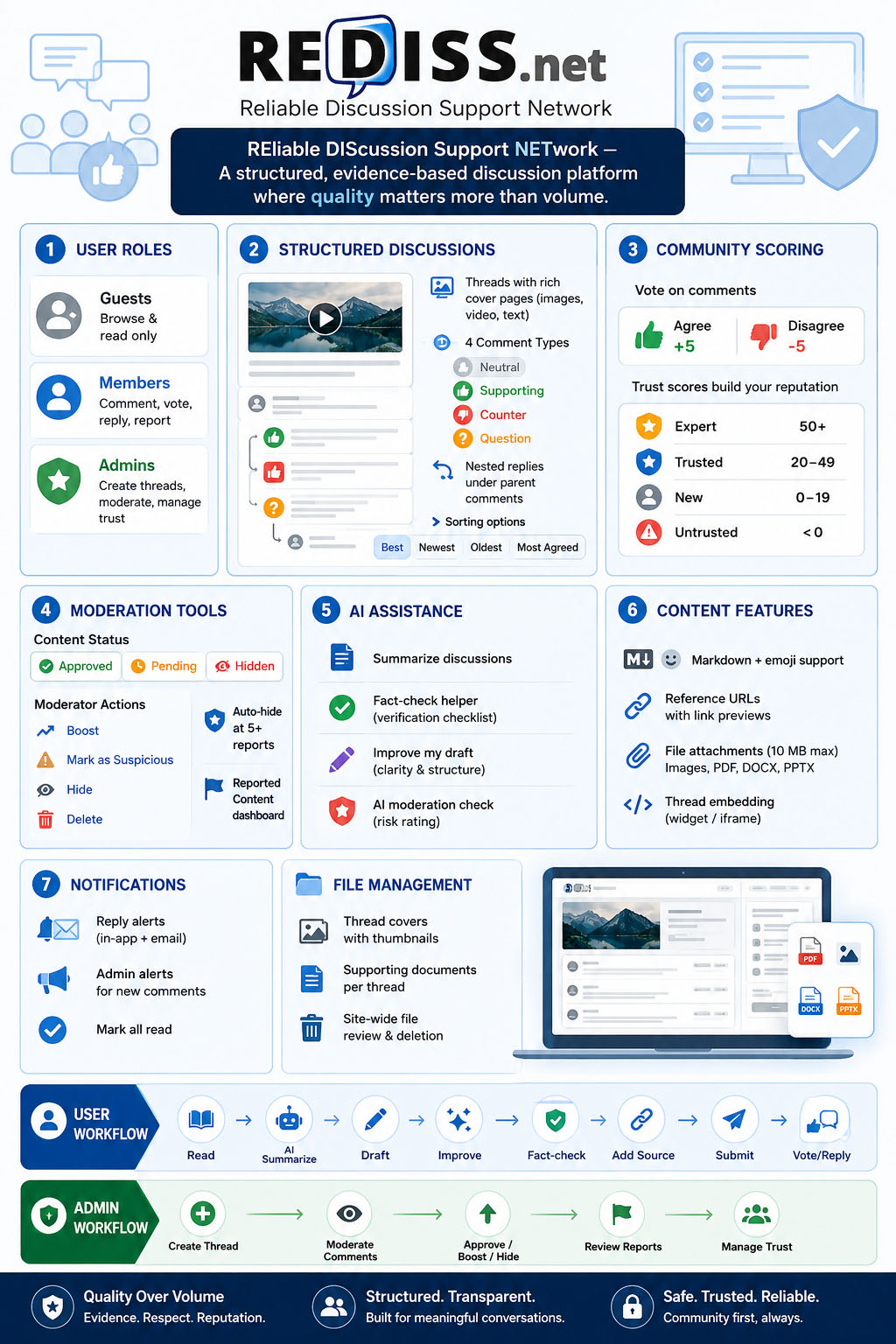
🖼 Graphical overview of the system
REDISS Net is a discussion platform built for reliable, evidence-based conversation. Unlike open social feeds, every discussion is structured, typed, community-scored, moderated, source-aware, and optionally AI-assisted.
|
Term |
Meaning |
|
Thread |
A discussion topic with a title and rich cover/description (text, images, video). Created by admins. |
|
Cover / Description |
The main content area at the top of a thread, edited with a WYSIWYG editor. |
|
Comment |
A user contribution. Can include Markdown, a reference URL, file attachment, and a comment type. |
|
Reply |
A comment linked to a parent comment; appears nested under that comment. |
|
Status |
Approved, Pending review (untrusted), or Hidden (removed from public view). |
|
Boosted |
Admin marker for especially high-quality comments. |
|
Suspicious |
Admin marker for comments that need extra scrutiny. |
|
Trust score |
A numeric reputation derived from votes and moderation actions. |
|
Badge |
Visual label (New User, Trusted, Expert, Untrusted) derived from trust score. |
|
Role |
Capabilities |
|
Guest |
Browse threads and comments, read attached files, view profiles, use AI Assist (summarize & fact-check) if enabled. |
|
Signed-in User |
Everything guests can do, plus: comment, reply, vote, report, receive notifications, use Improve my draft. |
|
Admin |
Everything users can do, plus: create/edit/delete threads, moderate comments, manage uploads, review reports, adjust trust scores, use AI moderation check. |
Admins are users whose Google email is listed in the server configuration (ADMIN_EMAILS). The Admin link appears in the navbar after first login.
REDISS uses Google sign-in only — there is no separate password. Your profile (name, picture, email) is taken from Google on first login.
1. Click Login with Google (top right).
2. Choose your Google account and approve access.
3. You return to the page you were on.
The default site language is German (DE). Use the DE | EN toggle in the navbar to switch to English. Your choice is saved in a cookie.
Footer links:
• Datenschutzerklärung / Privacy Policy
• Impressum / Terms of use (legal notice and site operator information)
|
Element |
Purpose |
|
Logo (top left) |
Return to the home page. Hover shows: Reliable Discussion Support Network REDISS Net. |
|
Bell icon |
Notifications (signed-in users only). Badge shows unread count. |
|
Admin |
Admin dashboard (admins only). |
|
Profile picture |
Your user profile page. |
|
Logout |
End your session. |
The home page lists all active discussion threads. Each card shows:
• Title
• Text preview (plain-text excerpt from the cover)
• Thumbnail — if the thread cover contains an image, the first image is shown as a preview
• Comment count and date
Click a card to open the full thread.
When you open a thread you see:
4. Cover / description — Rich formatted content (headings, lists, images, embedded YouTube videos) created by an admin.
5. Attached files widget (right side on desktop) — Supporting documents uploaded by the admin. Click to open or download.
6. Comment section — All public comments with sorting, voting, and the comment form.
|
Sort Option |
Order |
|
Best (default) |
Approved first, then most agreed, then oldest |
|
Newest |
Most recent first |
|
Oldest |
Oldest first |
|
Most Agreed |
Highest agree count first |
Replies appear nested directly under the comment they respond to. If a thread is locked, the comment form is hidden.
|
Type |
When to Use |
|
Neutral |
General observation or information. |
|
Supporting |
Supports a point or the overall discussion direction. |
|
Counter |
Presents an opposing view or counter-argument. |
|
Question |
Asks for clarification or evidence. |
7. Scroll to Add a comment (sign in if prompted).
8. Select a comment type.
9. Write in the text area — Markdown is supported (bold, italic, headings, lists, links, code).
10. Insert emoji — Click the smile icon to open a picker. Emojis are inserted at the cursor position.
11. Reference URL (optional) — Paste a link to a source. REDISS fetches a preview card below your comment.
12. Attach file (optional) — jpg, jpeg, png, gif, pdf, docx, pptx — maximum 10 MB.
13. Click Submit Comment.
New comments are visible immediately but marked Pending review until an admin approves them.
Tip: Use Improve my draft (see Section 5) before submitting if AI is enabled on your server.
14. Click Reply on any comment.
15. The form scrolls into view and shows Replying to [author name].
16. Write and submit as usual.
17. Click the X on the reply banner to cancel and post a top-level comment instead.
Your reply appears nested under the parent comment. The parent comment's author receives an in-app notification and an email (if email is configured).
• Click Agree or Disagree on any comment.
• You may cast one vote per comment; clicking the other option switches your vote.
• Counts are shown next to each button (e.g. 1.2k for large numbers).
• Votes affect the author's trust score: +5 per Agree, -5 per Disagree.
Use Agree for well-reasoned, sourced contributions. Use Disagree for misleading, off-topic, or poorly supported comments — not merely because you disagree politically.
18. Click Report on a comment you believe violates community norms.
19. Confirm the dialog.
20. The button changes to Reported; you cannot report the same comment twice or report your own comment.
After 5 distinct reports, the comment is automatically hidden from public view. Reports are for spam, harassment, and disinformation — not for mere disagreement. Use Disagree for that.
|
Indicator |
Meaning |
|
Pending review |
Visible but not yet approved by an admin. |
|
Supporting / Counter / Question / Neutral |
Comment type badge. |
|
Boosted (star) |
Admin marked this as high-quality and trustworthy. |
|
Suspicious (!) |
Admin flagged for extra scrutiny. |
|
Author badge |
New User, Trusted User, Expert, or Untrusted User — from trust score. |
|
Source preview |
Expandable card from a reference URL provided. |
The bell icon in the navbar shows your unread notification count (99+ for large numbers).
|
Event |
Who is Notified |
|
Someone replies to your comment |
You (the parent comment author) |
|
Someone posts a new top-level comment on a thread |
All admins |
Click a notification to mark it as read and jump to the relevant thread. Use Mark all read to clear the badge.
Click your profile picture to open your profile page. You see:
• Your name and badge
• Total comments posted
• Total Agrees received
• Recent comments with links back to threads
Admins additionally see your trust score and can adjust it (see Section 7.4).
When the site administrator configures an AI provider, optional AI Assist tools appear. These tools are advisory — they do not replace human judgment, sources, or moderation.
Important: AI can make mistakes. Never treat AI output as verified fact. Always check primary sources.
AI features are available on the web application. The Android mobile client does not include AI tools in the current release.
|
Tool |
Location |
Who Can Use |
|
Summarize discussion |
Thread page → AI Assist button |
Everyone |
|
Fact-check helper |
AI Assist panel → Fact-check tab |
Everyone |
|
Improve my draft |
Comment form → sparkle button |
Signed-in users |
|
AI moderation check |
Admin → Moderate thread → per comment |
Admins only |
If AI is not configured, these buttons are hidden.
Purpose: Help newcomers grasp the state of a long thread quickly.
21. Open any thread with comments.
22. Click AI Assist (next to the comment sort dropdown).
23. The Summarize tab runs automatically and produces 4–6 bullet points covering main positions, points of agreement, and open questions.
Best practices:
• Read the summary before posting to avoid repeating points already made.
• Link to the original thread when sharing summaries for full context.
• If the summary misses nuance, consider posting a Neutral comment that reframes the open questions.
Purpose: Encourage source-based reasoning without the AI declaring claims true or false.
24. Open AI Assist and switch to the Fact-check helper tab.
25. Enter a claim you want to examine (your own or someone else's).
26. Optionally paste a reference URL you found.
27. Click Fact-check helper.
The AI responds with things a careful reader should verify and what kinds of authoritative sources would settle the question. It does not invent citations or assert truth/falsehood.
Best practices:
• Run your own draft claim through the helper before submitting a comment.
• Use the output as a verification checklist — not as an oracle.
• Pair AI hints with the Reference URL field — paste the actual source you relied on.
Purpose: Improve clarity, tone, and structure without changing your opinion.
28. Write your comment in the form (choose type first).
29. Click Improve my draft (sparkle icon below the text area).
30. Review the suggested rewrite. Edit further if needed.
31. Add your reference URL and submit.
The AI will improve readability, suggest where a source would strengthen the point, and will not change your stance or invent facts.
Best practices:
• Remove any bracketed source suggestions you have not actually checked.
• For Counter comments, ensure the improved draft still clearly states what you are countering.
• Do not use this to generate comments you do not understand — you are responsible for what you post.
Purpose: A second opinion before approve/hide/delete decisions.
32. Go to Admin → Moderate on a thread.
33. Find the comment in question.
34. Click AI moderation check.
35. Read the LOW / MEDIUM / HIGH risk rating and short reasons.
Best practices for admins:
• Treat HIGH as a prompt to read carefully — not as automatic grounds for deletion.
• Treat LOW as reassurance, not proof of quality — still check sources on factual threads.
• Combine AI checks with report counts, vote patterns, and author trust scores.
• Sources over slogans — AI can suggest what to verify; users must supply references.
• Types over noise — Label comments accurately so threads stay structured.
• Votes over volume — Agree rewards substance; Disagree signals weak support.
• Transparency — Pending, Boosted, and Suspicious markers make moderation visible.
• Human final say — AI never auto-approves, auto-hides, or auto-deletes content.
Access the dashboard via Admin in the navbar (/admin).
|
Tab |
Purpose |
|
Threads |
List, create, moderate, embed, and delete discussions. |
|
Reported Content |
Comments users have reported (shown from the first report). |
|
Users |
All registered users with trust scores and badges. |
|
Uploaded Files |
All files uploaded to the site (covers, comment attachments). Review and delete. |
36. Click Create New Thread (opens a wide full-screen editor dialog).
37. Enter a Title (shown on the home page and thread header).
38. Compose the Cover / Description in the WYSIWYG editor (see toolbar below).
39. Click Create. You are taken to the thread moderation page.
|
Toolbar Button |
Function |
|
B / I / S |
Bold, italic, strikethrough |
|
H2 / H3 |
Headings |
|
Lists / Quote |
Bullet list, numbered list, blockquote |
|
Link |
Hyperlink |
|
Image |
Upload jpg/jpeg/png/gif (stored on server, embedded in cover) |
|
YouTube |
Embed video by URL |
|
Undo / Redo |
Edit history |
Tip: The first image in the cover appears as the thumbnail on the home page. Paste text from Word — basic formatting is preserved.
On a thread's Moderate page (/admin/thread/{id}):
|
Action |
Effect |
|
Edit title / cover |
Update content in the WYSIWYG editor, then Save. |
|
Lock / Unlock |
Locked threads disable new public comments. |
|
Delete Thread |
Permanently removes the thread, all comments, replies, and associated files. Irreversible. |
The Files section on the moderation page lets you upload supporting documents for the public side widget (separate from images embedded in the cover HTML).
Supported types: jpg, jpeg, png, gif, pdf, docx, pptx — max 10 MB each.
From the dashboard Threads tab, click Moderate on any thread. You see every comment including hidden ones, with status, author, trust score, report count, and vote counts.
|
Action |
Effect on Public View |
Effect on Trust Score |
|
Approve |
Confirms comment as trusted content |
Indirectly positive |
|
Mark Untrusted |
Reverts to pending; stays visible |
Neutral |
|
Hide |
Removed from public view |
-10 for author |
|
Boost / Unboost |
Shows / removes Boosted marker |
+10 while boosted |
|
Mark / Unmark Suspicious |
Shows / removes Suspicious marker |
Visual flag only |
|
Delete |
Permanently removes comment and all replies |
Recalculated from remaining |
|
AI moderation check |
— |
Advisory risk rating only |
Suggested workflow:
40. Scan report count and Suspicious flags first.
41. Run AI moderation check on borderline cases.
42. Approve quality contributions; Boost exemplary ones with sources.
43. Hide or Delete spam, abuse, and clear disinformation.
44. Use Mark Untrusted when unsure — keeps content visible while you investigate.
• Comments with 5+ reports are auto-hidden from the public thread.
• You can still see and act on them in the moderation view.
• Deleting or hiding resolves the issue; approving is appropriate when reports are bad-faith.
|
Factor |
Points |
|
Each Agree received |
+5 |
|
Each Disagree received |
-5 |
|
Comment is Boosted |
+10 |
|
Comment is Hidden |
-10 |
|
Badge |
Condition |
|
Expert |
Trust score ≥ 50, or user is Admin |
|
Trusted User |
Trust score 20–49 |
|
New User |
Trust score 0–19 |
|
Untrusted User |
Trust score below 0 |
Manual override: Open a user's profile (click their name) → Set Trust Score → enter a value → Update. Use sparingly for edge cases (e.g. imported users, demonstrably unfair pile-ons).
The Uploaded Files dashboard tab lists every file on the server:
• Thread cover/attachment — uploaded via thread file manager or embedded in WYSIWYG
• Comment attachment — uploaded by users with comments
• Unattached — orphaned uploads (e.g. images pasted during thread creation before save)
Each row shows filename, size, uploader, date, linked thread, and a Delete button. Deletion removes the file from disk and the database.
Tip: Review uploads periodically for inappropriate content or storage cleanup.
On the dashboard Threads tab, click Get Widget Code for a thread. Copy either:
• An HTML link — simple text link to the discussion
• An iframe embed — embed the thread view in another webpage (e.g. a news article, course page)
Point readers to the live discussion on REDISS rather than copying comments manually — that keeps voting, moderation, and sources intact.
□ Sign in with Google
□ Set language (DE / EN) if needed
□ Browse threads (note cover thumbnails on home page)
□ Read cover, attached files, and sorted comments
□ Use AI Summarize to orient yourself in long threads
□ Post typed comments with Markdown, emoji, reference URL, or attachment
□ Use Improve my draft and Fact-check helper before submitting strong claims
□ Reply (nested), vote Agree/Disagree, report abuse
□ Check notifications for replies
□ Create threads with rich covers (images → home page thumbnails)
□ Upload supporting files; manage site-wide uploads tab
□ Moderate: Approve, Boost, Hide, Suspicious, Delete
□ Use AI moderation check on borderline comments
□ Review Reported Content promptly
□ Adjust trust scores when necessary
□ Lock or delete threads when discussions conclude
□ Distribute widget/embed code for external promotion
□ Summarize before joining a long thread
□ Improve draft for clarity — then verify every claim yourself
□ Fact-check helper as a verification checklist, not a verdict
□ Always add a Reference URL when citing external facts
□ AI moderation assists admins — human decision is final
|
Item |
Limit |
|
Upload size |
10 MB per file |
|
Allowed types |
jpg, jpeg, png, gif, pdf, docx, pptx |
|
Comment input |
Markdown + emoji |
|
Thread cover |
WYSIWYG HTML (images, YouTube embeds) |
Last updated: June 2026 — REDISS Net v1.0